What you need before streaming
Use a Steam Machine or VR-compatible PC with the included wireless adapter, SteamVR, and the same Steam account signed in on the PC and headset.
Connect the included wireless adapter to the PC, preferably through a USB-3 port, launch SteamVR, and accept the driver installation prompt.
Home Wi-Fi can carry the stream, but it tends to be more congested and less reliable than the direct wireless-adapter connection.
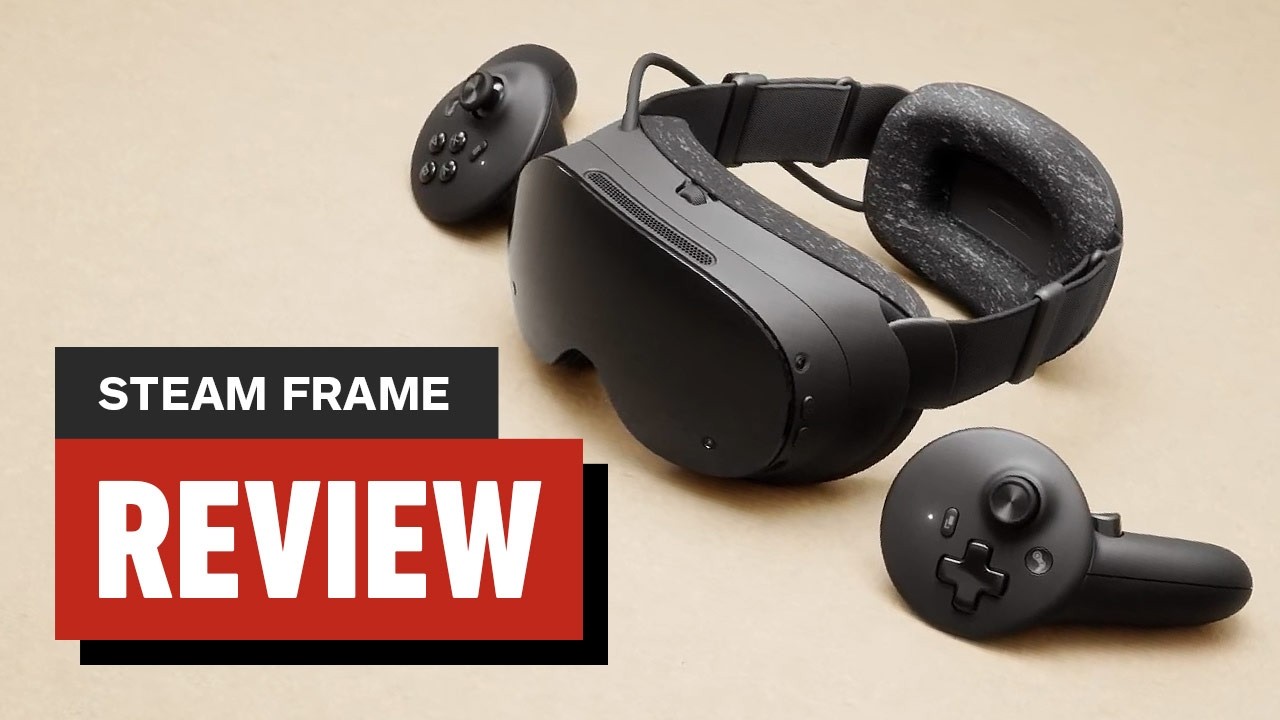
Watch the official quick-start guide while pairing the headset and PC and installing SteamVR.Playing this video connects to YouTube.
Start the streamed game
- Sign in to the same Steam account on both Steam Frame and the host PC.
- Plug the included wireless adapter into the PC and follow Steam's prompts to pair the devices and install SteamVR.
- Launch SteamVR and accept the prompt to install the wireless adapter's driver when it appears.
- Open the Steam library in the headset, choose a game available for streaming, and select “Stream” to play it wirelessly.
Recover pairing or stream quality
- If the driver prompt does not appear, confirm that the PC is opted into the Steam Beta Update.
- Reboot the PC if the installed driver has not taken effect, then check for the prompt again.
- If pairing still does not start, restart the headset and confirm that it uses the same Steam account as the PC.
- If streaming over home Wi-Fi is unreliable, use the included wireless adapter's direct connection instead.